Get started · step 3 of 13
Choose your edition and turn on its modules
Pick the trade edition that matches your business so the right modules (tables, bookings, repairs, memberships, scales) switch on.
2 min · Updated October 17, 2026 · By SmartPOS editorial team
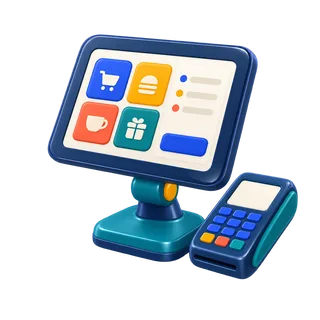
Your edition decides which trade modules are switched on: tables and kitchen orders for restaurants, bookings and commission for salons, work orders for garages, memberships for gyms and car washes, scales and expiry for grocers.
How to choose
If you are not sure, use the edition finder. It asks what you sell, how customers order and what you need, then ranks the editions that fit.
Switching modules on
- Go to Settings → Business settings → Modules.
- Your edition’s modules are already ticked. Tick any others you need, for example Bookings for a cafe that takes table reservations.
- Save, then refresh the page. New menu items appear in the sidebar.
Running two trades
A bakery with a cafe, or a garage with a car wash, can run both in one account: switch on both sets of modules and give each location the products it sells.
What it changes in billing
Modules for your edition are included in POS Growth. On POS Essentials, the trade modules are not included; you can upgrade at any time from the billing page.
Related guides
Stuck? Ask support or book a free setup call.